
Guide
How to Use Happy Horse 1.0
Complete Beginner's Guide (T2V & I2V)
Happy Horse AI is powered by Happy Horse 1.0 — the #1-ranked AI video model on Artificial Analysis Video Arena. This guide walks you through everything: choosing a generation mode, writing your first prompt, setting output options, and downloading your finished video. No prior experience needed.
Last updated: April 2026. This beginner guide covers the current four-step workflow, free-tier access with no sign-up required, and the difference between 720p free output and 1080p paid export.
Ready to generate? Head to Happy Horse AI and try it free — no sign-up required.
Process
Getting Started in 3 Steps
01
Choose Your Generation Mode
Happy Horse 1.0 supports Text-to-Video (T2V) — describe a scene in text and generate a video from scratch — or Image-to-Video (I2V) — upload a reference image and describe the motion and mood you want.
See full model comparison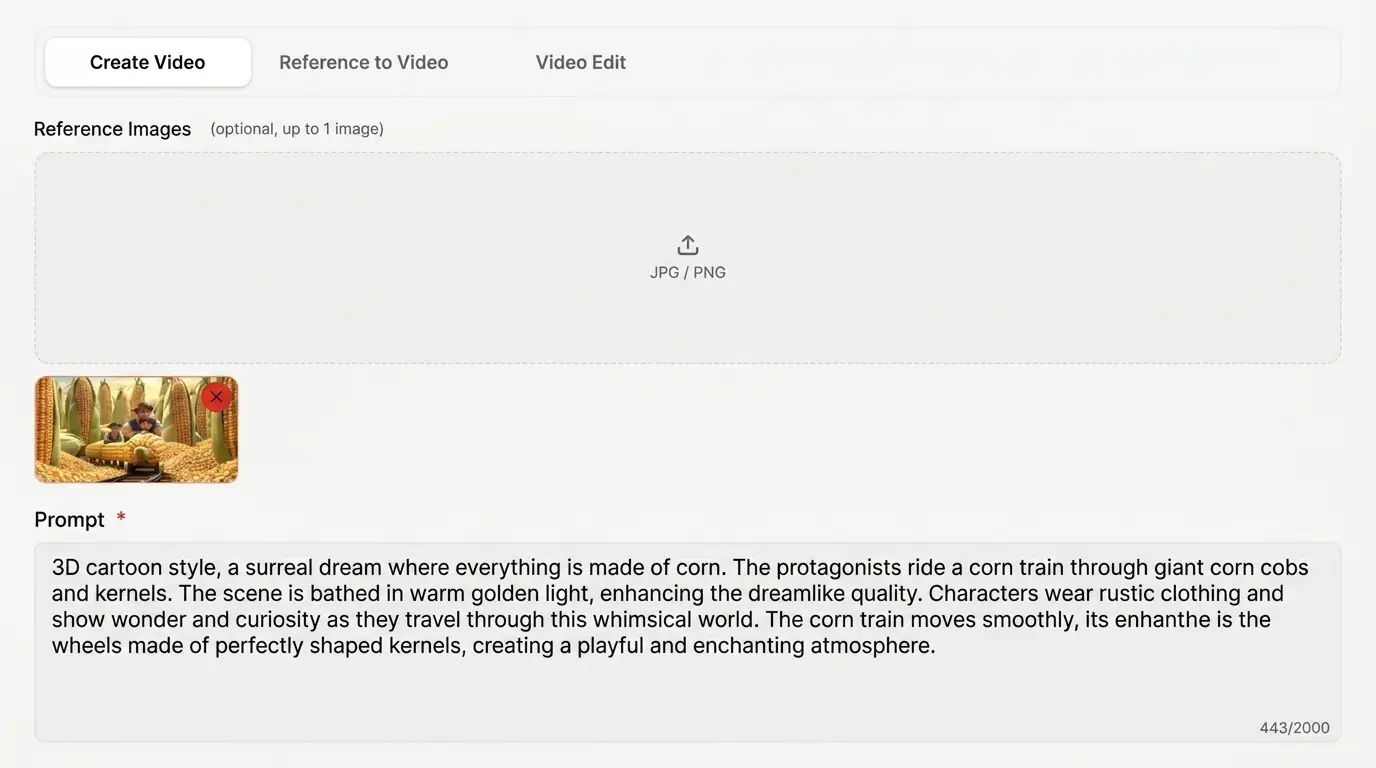
02
Set Parameters
Choose aspect ratio (16:9, 9:16, 1:1, 4:3, 3:4), duration (2–15 seconds), and resolution (720p free / 1080p paid). Native audio-video generation is on by default.
Read our Prompt Guide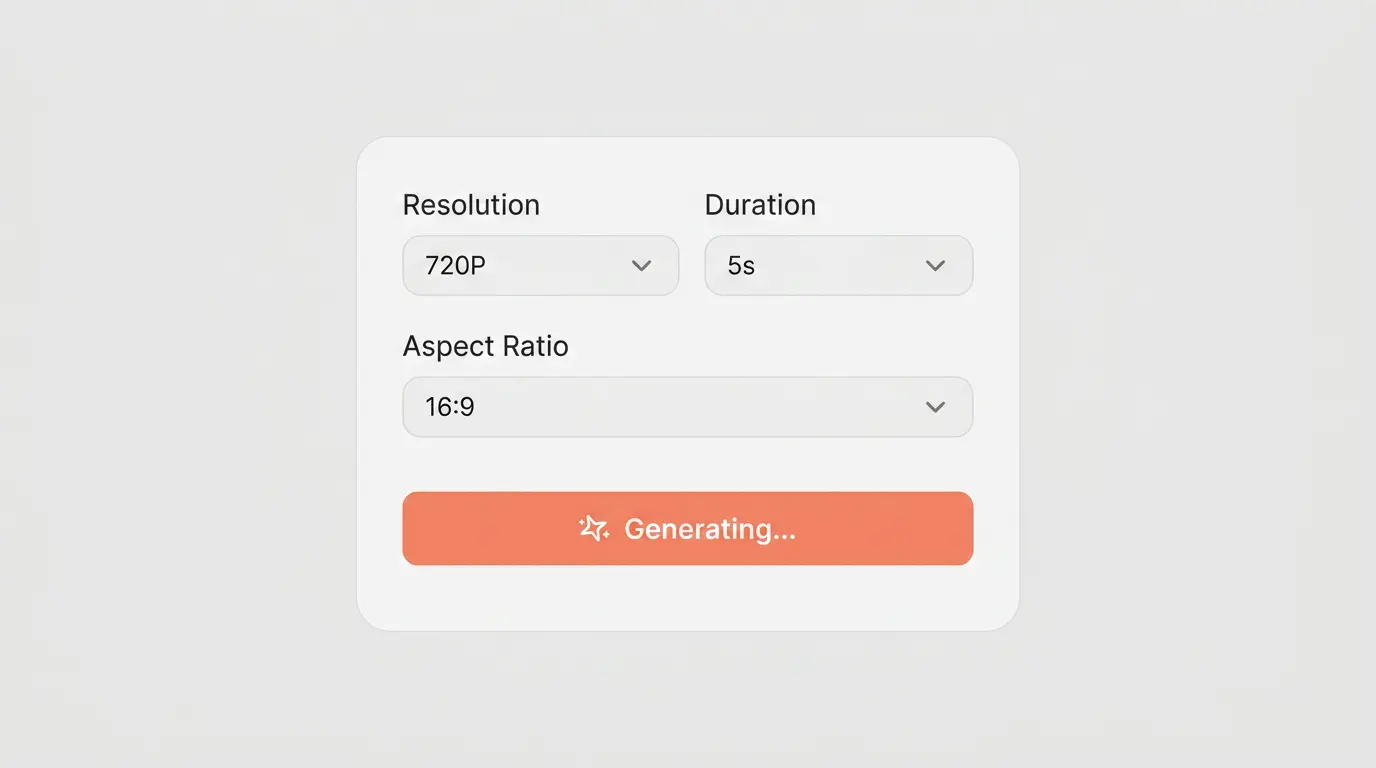
03
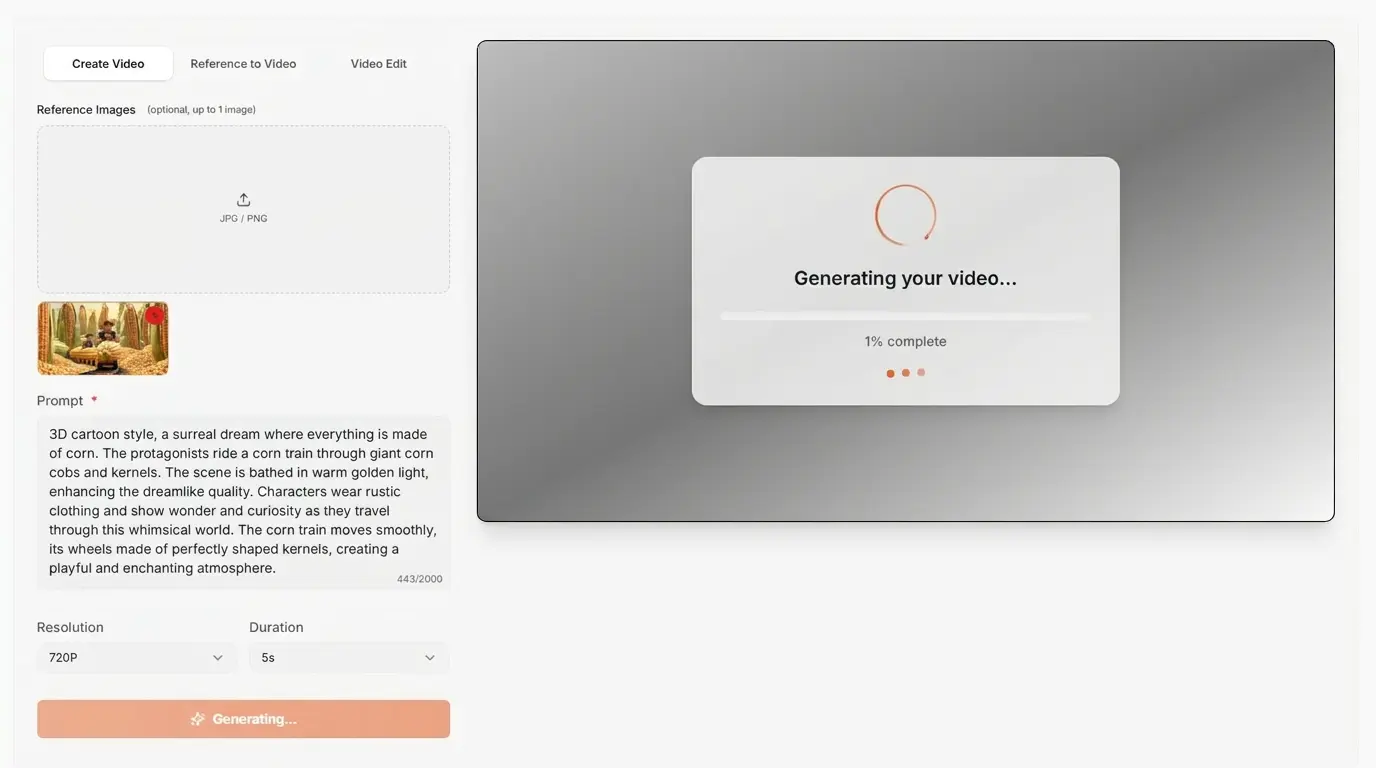
Generate & Download
Click Generate. Happy Horse 1.0 uses 8-step CFG-free inference — fast and clean. Preview your video, then download as MP4. Paid plans remove the watermark and unlock 1080p.
Mode 1
Text-to-Video Guide
Text-to-Video (T2V) is the most flexible mode. You write a prompt, and Happy Horse 1.0 creates the full scene — visuals and native audio — in one pass.
Prompt Structure
[Subject] + [Scene/Environment] + [Motion] + [Camera] + [Mood/Audio]
Mode 2
Image-to-Video Guide
Image-to-Video (I2V) takes your reference image and animates it according to your prompt. Happy Horse 1.0 leads all models in Source Fidelity (9.5/10) — it preserves the look of your image better than any competitor.
Use a clear, well-lit image
Blurry or cluttered inputs confuse the model.
Describe motion explicitly
"Gentle swaying", "slow pan right", "hair blowing in wind".
Specify atmosphere
"Warm golden hour", "cold blue fog", "neon-lit rain".
Keep the subject centered
Especially important for multi-reference inputs.
Match audio to the image
For an ocean image: "gentle waves, distant seagulls".
Example I2V prompt (given a mountain lake image)
Tips
Prompt Writing Tips for Happy Horse 1.0 (T2V & I2V)
Name the camera movement
"Slow zoom in", "tracking shot", "dolly forward" give the model clear direction.
Specify lighting
"Golden hour", "studio rim light", "neon night" set the scene instantly.
Add audio intent
"Ambient café noise", "dramatic orchestral swell", "wind through leaves".
Use style references
"Cinematic", "product commercial", "documentary", "anime".
Mention pace
"Slow, deliberate motion" vs "fast-cut energy" — pace shapes everything.
Avoid vague adjectives
"Beautiful" tells the model nothing. "Dramatic" + context does.
FAQ
Frequently Asked Questions
Get Started
Try the #1-ranked model
free.
Happy Horse 1.0 is free to start — no sign-up required. Generate your first video in under 60 seconds. 1080p on paid plans.